
PhotoHubThe features.
The PhotoHub workspace reference, from document creation to delivery. Available tools vary by device and installed version.
Create, import and find a document
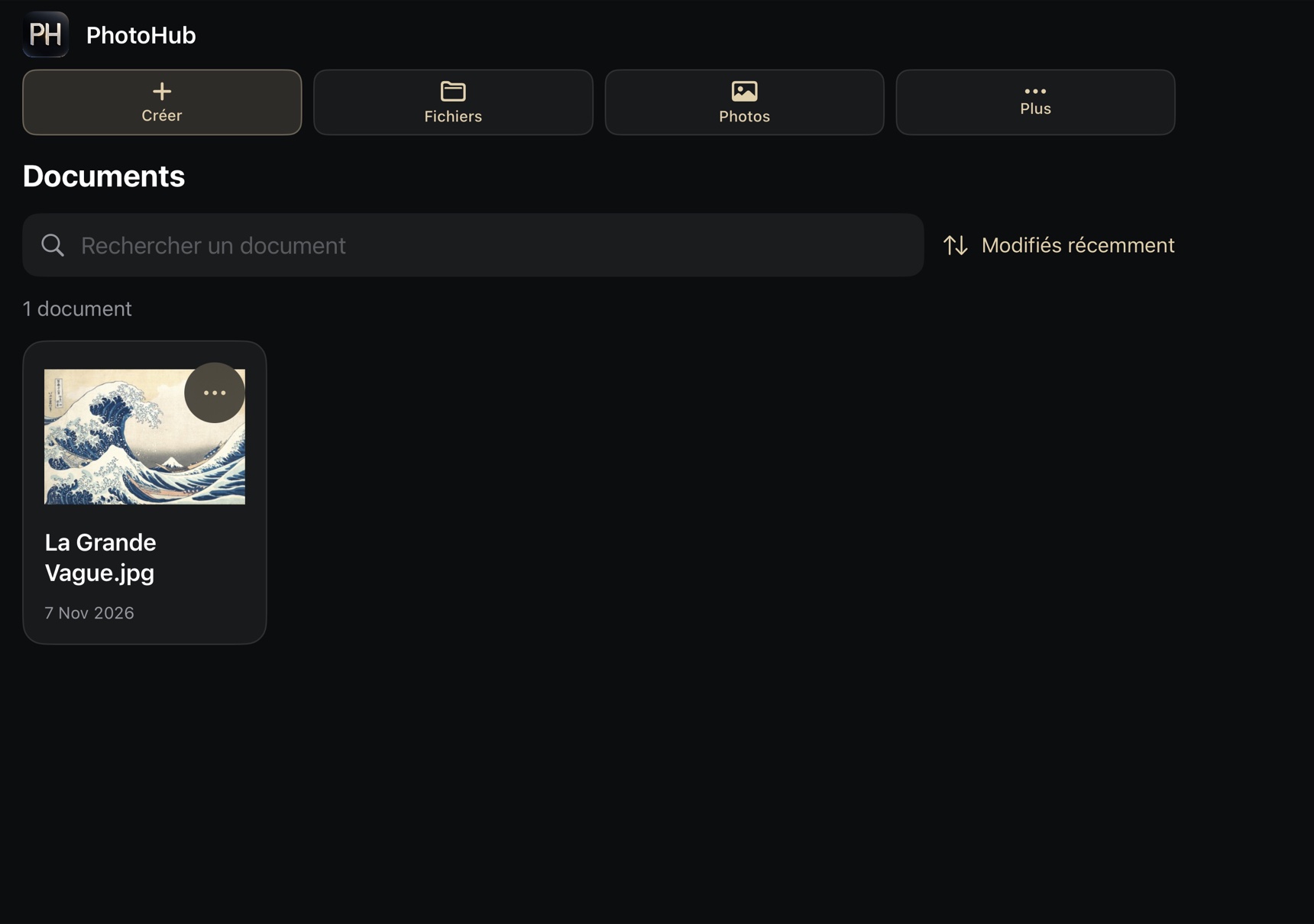
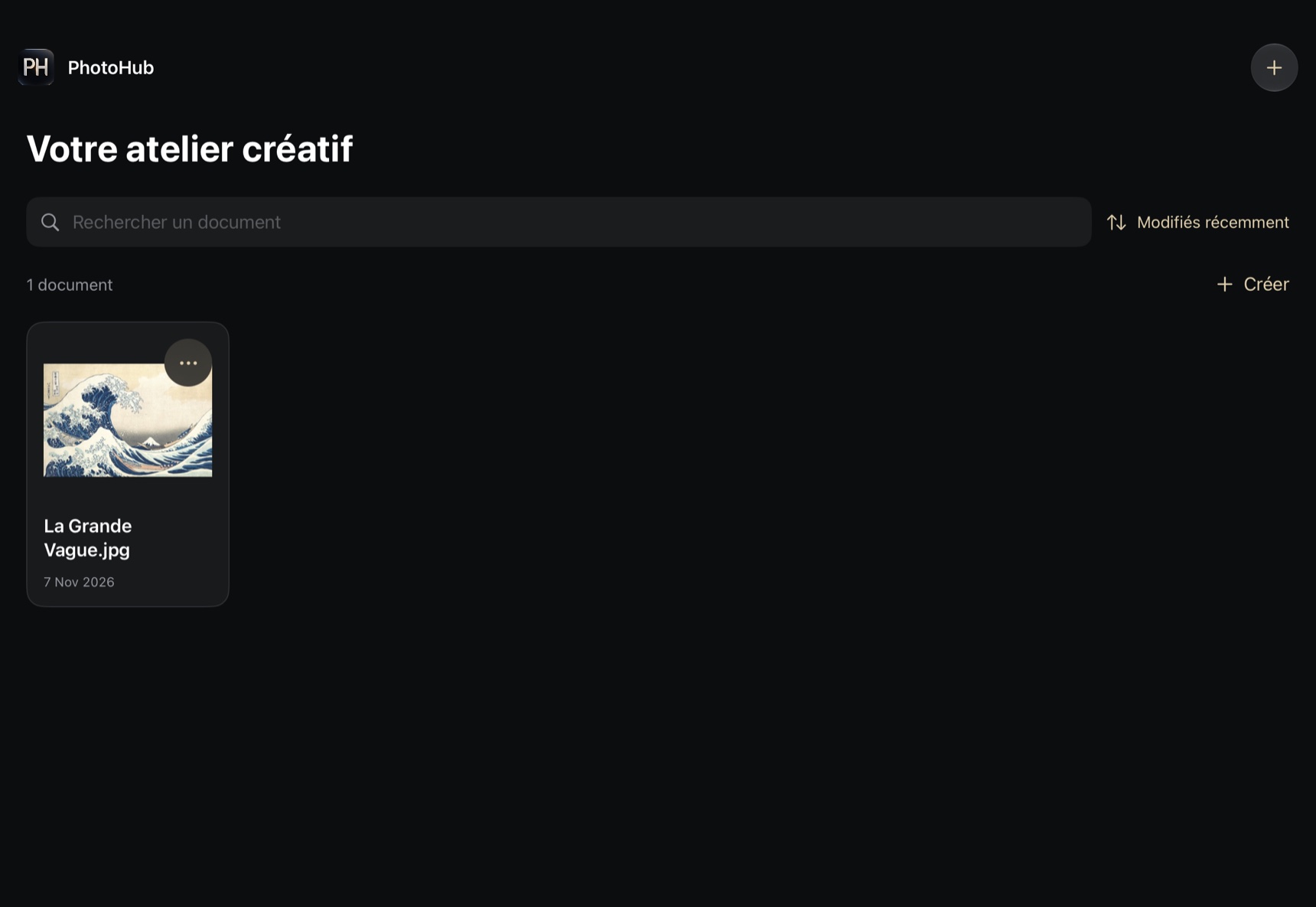
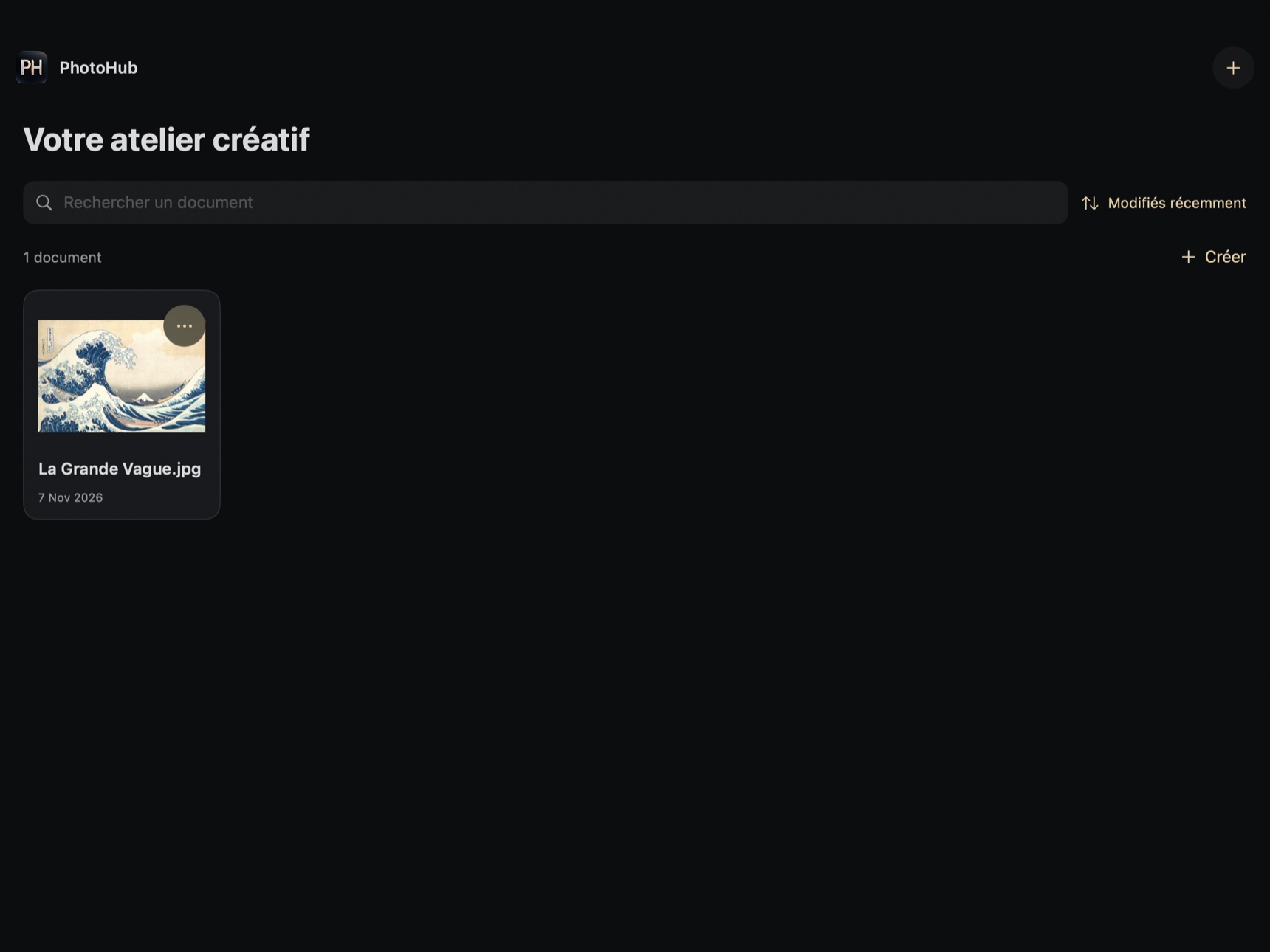
Create a document with dimensions, resolution, mode, depth and background. Starter formats prefill settings. Import from Photos or Files, then find documents with search and sorting. PhotoHub projects use .phub and older .pcraft files remain readable. External documents open as copies.
In practice. Keep a project copy so you can return to the layers after a flattened export.
In PhotoHub
From the library, choose Create or a starter format. Set size, color mode, bit depth, background, resolution and the optional artboard in the form. Photos and Files imports open a copy. Switch open projects from the document menu or Mac tabs. Use Save As for an independent project, Save a Copy for sharing, and Document Information for metadata.
Layers, groups and blending
Select, rename, duplicate, reorder and delete layers. Manage visibility, opacity, fill opacity, blend modes, clipping and locks. Groups collapse, expand and merge. Advanced options include blending channels, split tonal thresholds and effect-mask settings.
In practice. One layer per element makes revisions easier. Lock position or pixels when you need to protect them.
In PhotoHub
Open Layers and choose + for pixels, text, groups, adjustments or fills. Use the eye to toggle visibility. In the selected layer’s ⋯ menu, choose Show Details for opacity, properties and effects. The same menu includes ordering, alignment, duplication, merging and layer export. The panel header menu provides search, multi-select, isolation and cleanup.
Layer masks and vector masks
Paint into a mask, adjust density and feather, then enable or link it to its layer. Work, named and shape paths can become vector masks. Properties provide visibility, inversion, loading as a selection, conversion to a pixel mask and removal.
In practice. Check the target before a stroke to distinguish painting on pixels, a mask or a channel.
In PhotoHub
Select the mask thumbnail before painting or erasing locally. Properties control its enabled state, link, density and feathering. A work path or named path can become a vector mask. Its operations include inversion, loading as a selection and conversion to a pixel mask.
Selections and edge refinement
Geometric selections, polygonal and magnetic lassos, color ranges and contour commands define areas. Expand, contract, smooth, feather or create a border. Refine Selection provides radius, contrast, edge shift, decontamination and output to a selection, mask or new layer.
In practice. Refine difficult areas in the preview before applying your chosen output.
In PhotoHub
Draw a rectangle, ellipse or lasso. Polygonal and magnetic lassos let you revise points before applying. Use Magic Wand, Quick Selection, Object Selection or Color Range according to the image. Refine Selection provides a local brush, radius, smoothing and output to a selection, a mask or a new layer.
Painting, brushes and Apple Pencil
Painting and erasing accept Pencil or finger input according to preferences. The library retains brush presets, imports ABR files and creates tips from a selection. Pencil, mixer, color replacement and selective erasers extend the tools. Pressure, tilt and compatible Pencil controls are documented, with physical validation still needed for advanced gestures.
In practice. On iPad, choose touch navigation or finger painting in preferences. Set hardness, size and opacity before painting.
In PhotoHub
The brush strip controls size and opacity. On Mac it also shows flow for compatible tools. Advanced settings cover tips, hardness, pressure and symmetry. Brush libraries support ABR and sampled tips. Pencil Pro gestures depend on the iPad, the stylus and system preferences.
Retouching, cloning and healing
Clone Stamp and Healing Brush provide transformable sampling sources. Patch and Content-Aware Move preview the moved selection. Content-Aware Fill offers an editable sampling overlay. Pattern Stamp uses a PAT pattern with scale and angle.
In practice. Work on a duplicate layer and inspect edges at high zoom before committing.
In PhotoHub
Spot healing, object removal, cloning and source-based healing address different retouching tasks. Five clone sources retain independent transformations. Patterns exposes scale and angle for the pattern stamp. Use Dodge, Burn, Sponge, Blur, Sharpen or Smudge for stroke-based retouching.
Adjustment layers and LUTs
All sixteen engine adjustment families have native controls. Curves, multichannel levels, HSL mixer, color balance, black and white, photo filter, channel mixer and selective color are available in their panels. Gradient maps and Color Lookup complete the look, with .cube, .3dl and .look import.
In practice. Use an adjustment layer and mask to revisit intensity and area. LUT presets remain limited by their storage format.
In PhotoHub
Add an adjustment from + in Layers, then edit it in layer details or Adjustments. Gradient Map exposes editable stops and blending. Color Lookup accepts .cube, .3dl and .look. The document embeds the imported table and exposes interpolation and dithering.
Filters and smart filters
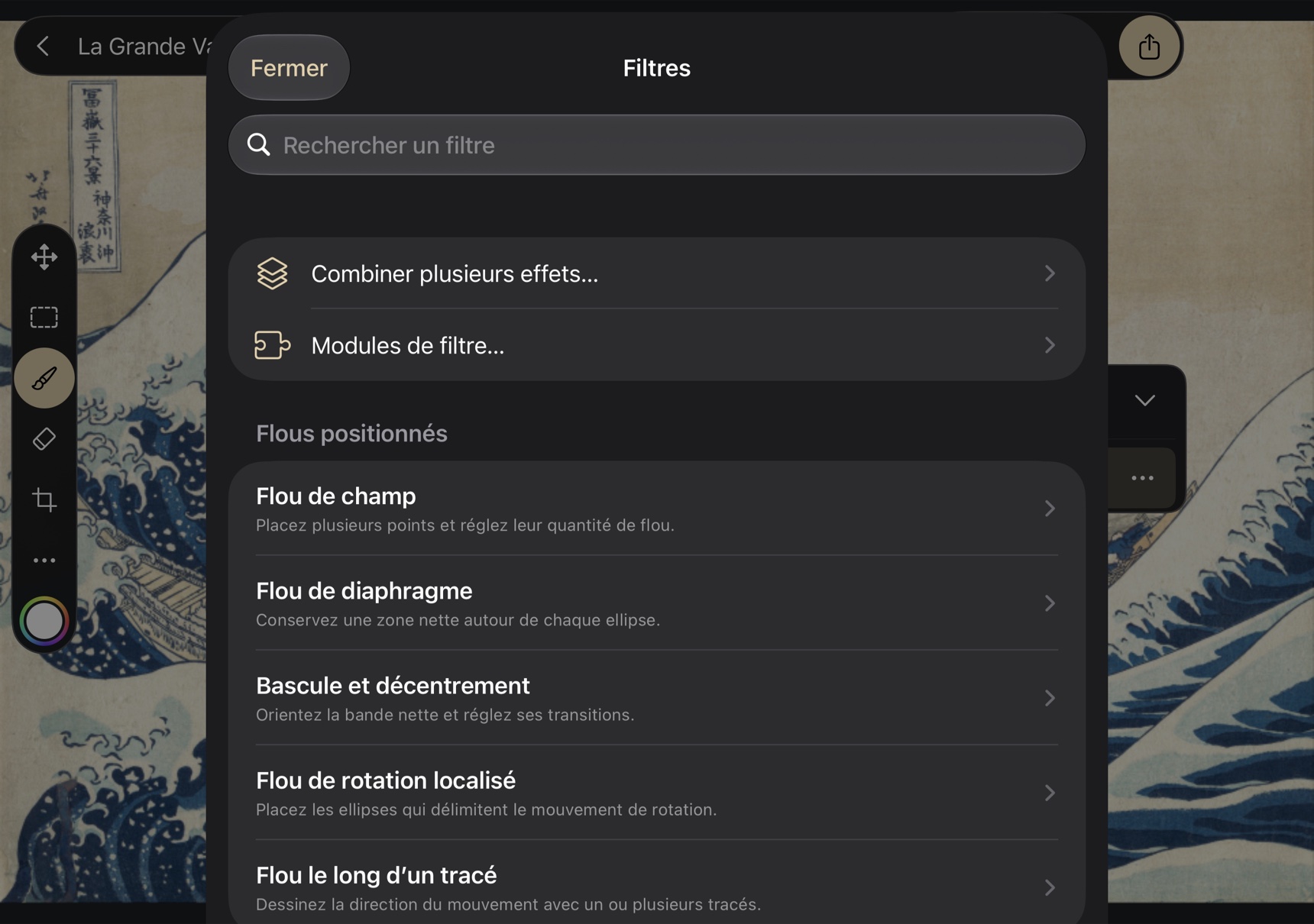
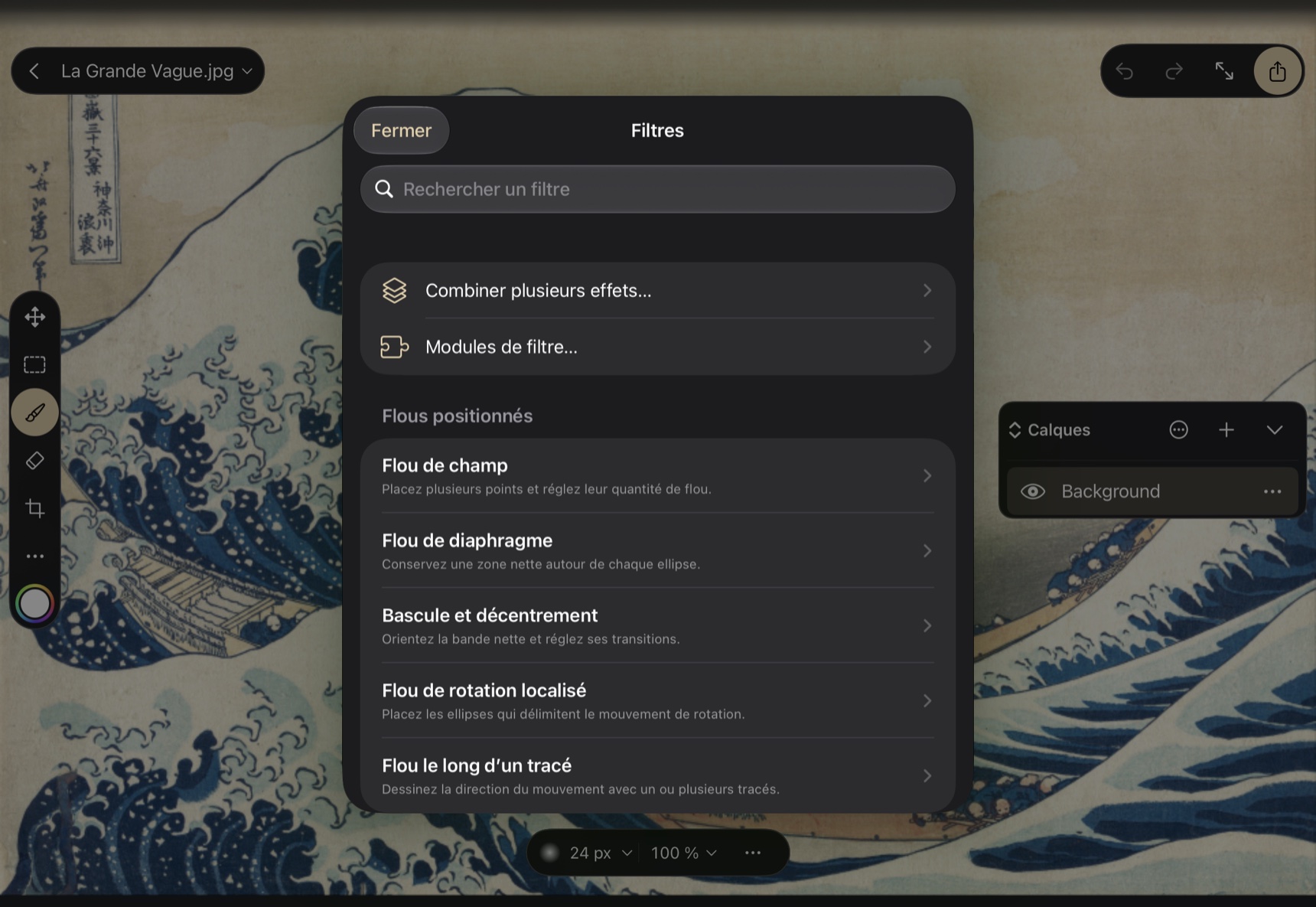
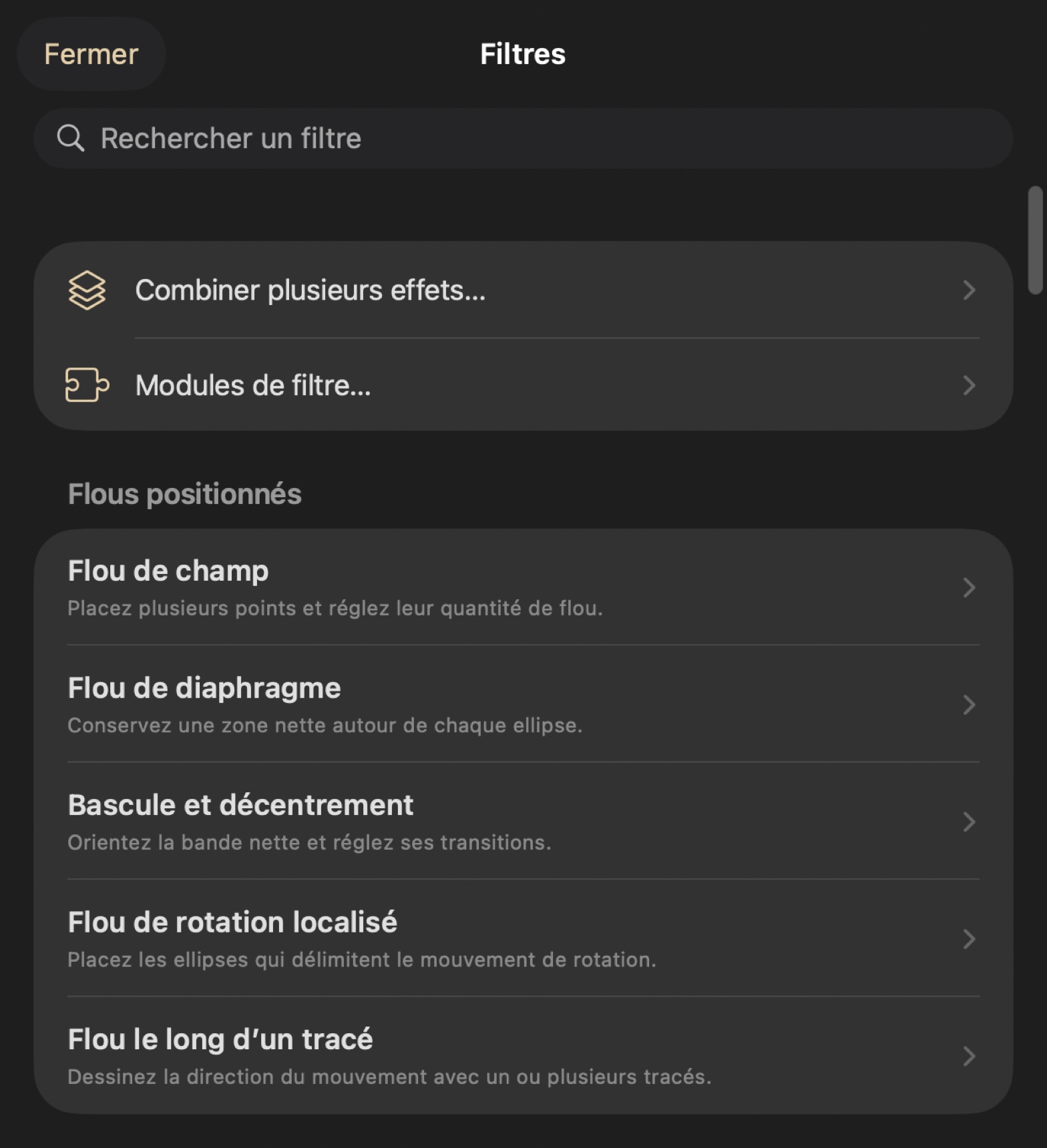
The native gallery documents 114 curated filters with search and appropriate parameters. Blur, sharpening, noise, pixelation, stylization, distortions and morphology are grouped by family. Recognized smart filters provide visibility, opacity, ordering, removal and editing of supported parameters.
In practice. Operations exposed as background jobs provide progress and cancellation. Others may require processing time before returning control.
In PhotoHub
Open Image and Colors, then Filter Gallery. Search by family or name, choose a target and compare the preview before applying. Recognized filters on a smart object can be edited again. Their menu controls ordering, visibility, opacity and removal. Background jobs expose a Cancel action next to progress.
Geometry and warping
Adjust image size, canvas size, resolution and resampling. Affine transforms, four-point perspective, preset warps and Bézier grids operate on layers. Liquify, Perspective Warp and Puppet Warp have dedicated previews and controls.
In practice. Inspect the preview before applying. Canvas view rotation is separate from transforming the pixels.
In PhotoHub
Use Crop to set and apply a frame. Image Size can resample, while Canvas Size changes extent around an anchor. Layer transforms offer affine, perspective, warp and repeat. Content-Aware Fill and Scale have dedicated previews.
Text and typography
Create and edit text with family, size, weight, alignment and paragraph controls. Tracking, leading, baseline, ligatures and direction extend typography. Advanced panels handle text selection, glyphs, named styles, variable axes, type on a path and warps. Missing fonts are reported.
In practice. Check available fonts on each device before finalizing a shared document.
In PhotoHub
Add a type layer and choose font, size and alignment. Character and paragraph controls include tracking, kerning, leading, indents, ligatures, direction and hyphenation. Styles, glyphs, variable axes and missing-font warnings help preserve the composition. A path can serve as an editable baseline.
Shapes, paths and channels
Draw rounded rectangles, polygons, stars and arrowed lines. Edit fill and stroke. The pen and path editor expose anchors and Bézier handles. The Paths panel converts selections and paths. Alpha channels can be created, duplicated, renamed and painted in a dedicated editor.
In practice. Save a named path to reuse it as a selection or vector mask.
In PhotoHub
Create shapes, frames, polygons, stars or lines, then adjust fill and stroke. Paths saves, loads, transforms, fills and converts paths to selections. The point editor manipulates anchors and Bézier handles. In Channels, create, duplicate or rename an alpha, load it as a selection or paint it in its isolated editor.
Styles, patterns and gradients
Shadows, glows, stroke, satin, bevel/emboss and color or gradient overlays have per-effect controls. Libraries exchange ASL styles, PAT patterns and GRD gradients. Gradients offer color and opacity stops, midpoints, reversal and dithering. Patterns expose scale, angle and origin.
In practice. Save a style to reuse a consistent treatment on other layers.
In PhotoHub
Layer details open shadows, glows, stroke, bevel, satin and overlays. Styles exchange as ASL. The libraries also handle GRD gradients and PAT patterns. Fill layers keep editable geometry and opacity stops separate from image pixels.
Smart objects and sources
Replace a source, share an embedded file and open its contents in a recoverable draft. Changes can be applied to the parent as one undoable operation. External associations support manual refresh while retaining an embedded source for offline use.
In practice. Collect authorized sources in a portable ZIP package before moving a project.
In PhotoHub
Use Insert File to place a source. Replace Contents embeds the new file and preserves shared instances. Edit Contents opens a recoverable draft and applies it to the parent as one undoable operation. An associated external source can be refreshed manually.
Canvas, guides and workspaces
Navigator, zoom, view rotation, rulers, grids and guides organize the workspace. Guides accept pixels, percentages and physical units. Snapping, pixel grid, pattern preview, mirroring and canvas modes extend display. Multiple documents can be arranged in tabs or layouts supported by the device and memory.
In practice. Preferences retain view choices and offer shortcut customization within system-reserved limits.
In PhotoHub
Hand pans the view. Double-tap the image on iPhone/iPad or double-click on Mac to zoom at the chosen point, then repeat to fit. On touch screens, pinch to zoom and pan with two fingers. Canvas Display includes Fit, Fill, Navigator and Canvas Mode. Guides, rulers, grids, snapping, artboards and layer comps organize larger projects.
Color management and metadata
Assign or convert built-in or imported ICC profiles. Preferences define how differing profiles are handled during import. Soft proofing provides print profiles, plates, vision simulation and gamut warnings. File Info displays available camera data and allows XMP editing.
In practice. The proof preview is separate from export. Select the required profile in delivery settings as well.
In PhotoHub
Assign Profile tells PhotoHub how to interpret values. Convert changes the values to preserve appearance in the destination profile. Soft proofing simulates an output or viewing condition in the preview. Document Information exposes XMP metadata and available camera data.
Actions, batches and variants
The Actions panel records and replays compatible operations, exchanges ATN files and retains a local library. Steps can be enabled, reordered or removed. Batch processing makes copies, with a documented limit of 25 images for compatible actions. Data-driven templates import CSV variants for text, visibility and images.
In practice. Test an action on a copy before a batch. Only compatible steps are replayed.
In PhotoHub
Record compatible steps in Actions, then rename, reorder, disable or replay them. Actions exchange as ATN. Batch processing works on copies. CSV variants supply text, visibility and embedded image replacements. PhotoHub exports PNG or JPEG variants as a ZIP.
Animation and image sequences
The Timeline panel creates timelines, navigates frames and manages editable video layers. Numbered files, GIF, WebP and TIFF can supply footage. Animated GIF export is bounded to 600 frames and 64 million cumulative pixels. PNG/JPEG sequences provide work range, numbering, progress and cancellation.
In practice. For clip editing and audio mixing, also see FilmHub and its development scope.
In PhotoHub
Create a timeline, set its frame rate, then add a video layer or import a numbered sequence. Navigate, insert, duplicate or delete frames. Work-range preview preserves the playhead. Outputs include animated GIF and numbered PNG/JPEG sequences. GIF is limited to 600 frames and 64 million total pixels.
PSD, export and printing
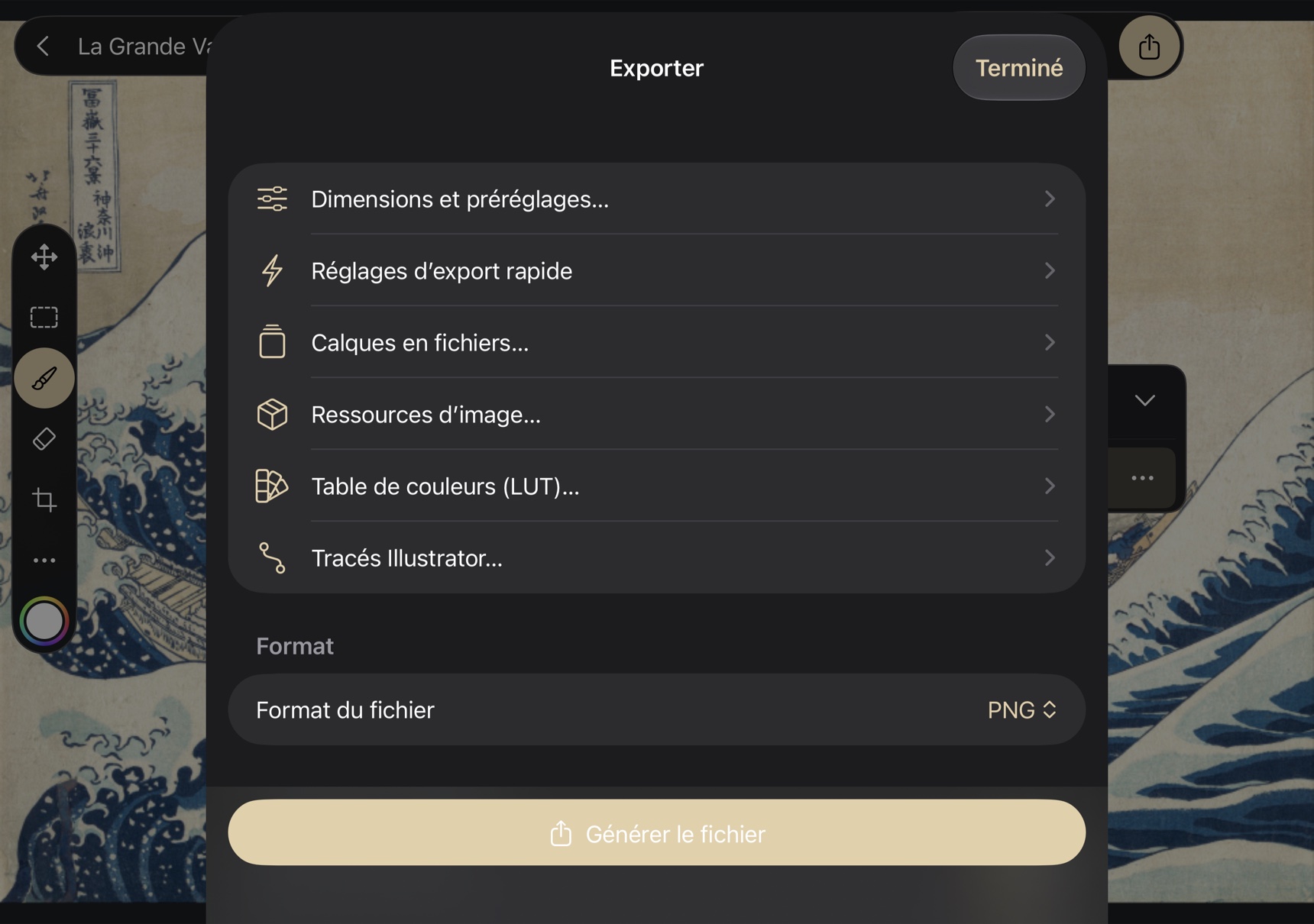
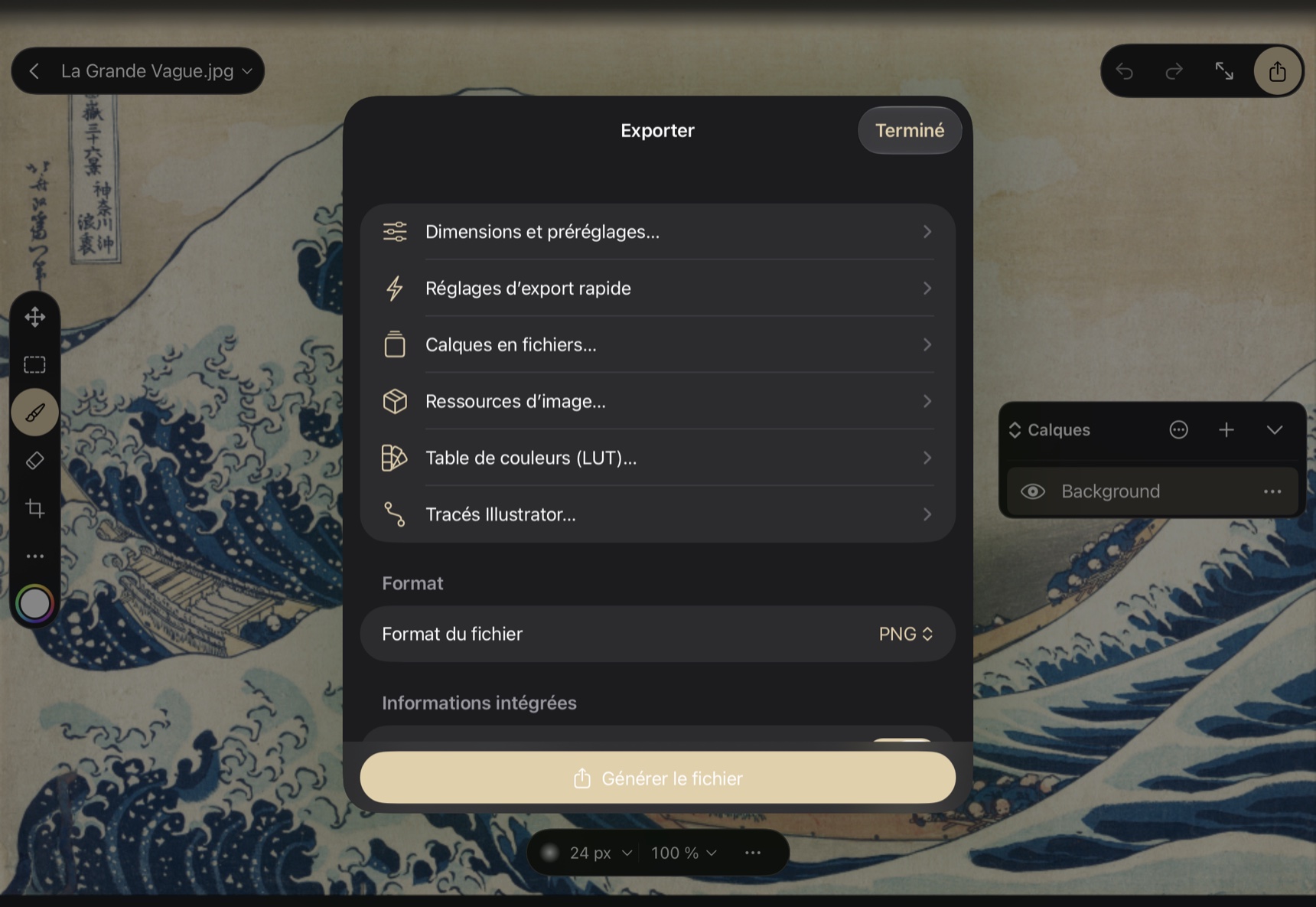
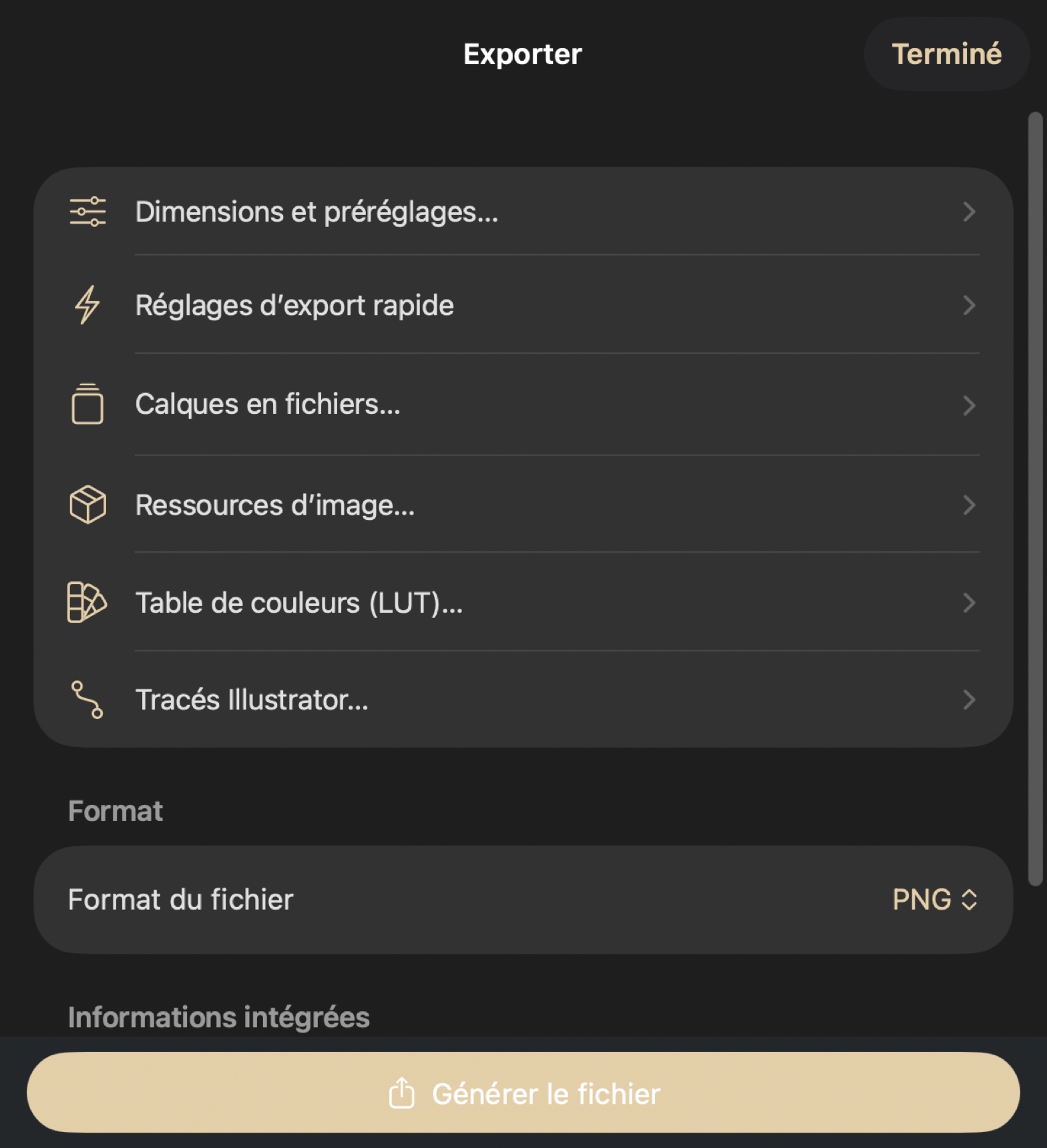
Import images and PSD documents. Documented native exports include PNG, JPEG, TIFF, PSD, PSB, WebP, flattened PDF, OpenRaster, BMP, OpenEXR and JPEG XL. Depending on format, set quality, transparency, layers, size, profile and metadata. Import and export warnings report limitations. Artboards, layer compositions, slices and specialized exports have their own controls.
In practice. Keep your .phub project. Test PSD round trips on a representative copy. Print preparation produces a previewable, shareable PDF.
In PhotoHub
The share button opens Export, Quick Export, Print and Save for Web. Export lets you choose size, resampling, profile, metadata and quality as supported by the format. Outputs include PNG, JPEG, TIFF, PSD/PSB, WebP, PDF, OpenRaster, BMP, OpenEXR and JPEG XL. Artboards, layers and slices offer separate outputs. Review warnings before sharing.
Saving, history and iCloud
Documents are retained in the local app container with atomic saves and thumbnails. History, undo/redo and snapshots revisit session operations. Private CloudKit synchronization is optional, with a separate document toggle and on-demand downloads. Multi-device deletion and transfer still need physical validation.
In practice. History snapshots are session-scoped. Export a project copy and retain important backups.
In PhotoHub
PhotoHub automatically saves local documents. History and named snapshots let you compare states during the session. Enable iCloud in Settings if you want to sync the library and its private catalogs. A cloud-only document downloads on open. Local removal and removal on all devices are separate actions.
Measurements, scanner and annotations
Notes, count marks and a ruler have a dedicated overlay. Calibration supports custom measurements and CSV sharing. On supported iPhones/iPads, the system scanner imports up to twelve corrected pages as separate layers. Scanner availability depends on the operating system and device.
In practice. Check measurement scale and document dimensions before using the results.
In PhotoHub
Annotations collects notes, count groups and measurements. The ruler supports calibration and measurement logs can be shared as CSV. On compatible devices, Scan Document imports up to twelve corrected pages as separate layers.
Limits and versions
PSD compatibility depends on the document’s elements. Advanced Pencil gestures, iCloud and complex workflows still require physical-device validation. This wiki describes documented native controls without promising complete parity with PhotoCraft or Photoshop.
PhotoHub by device
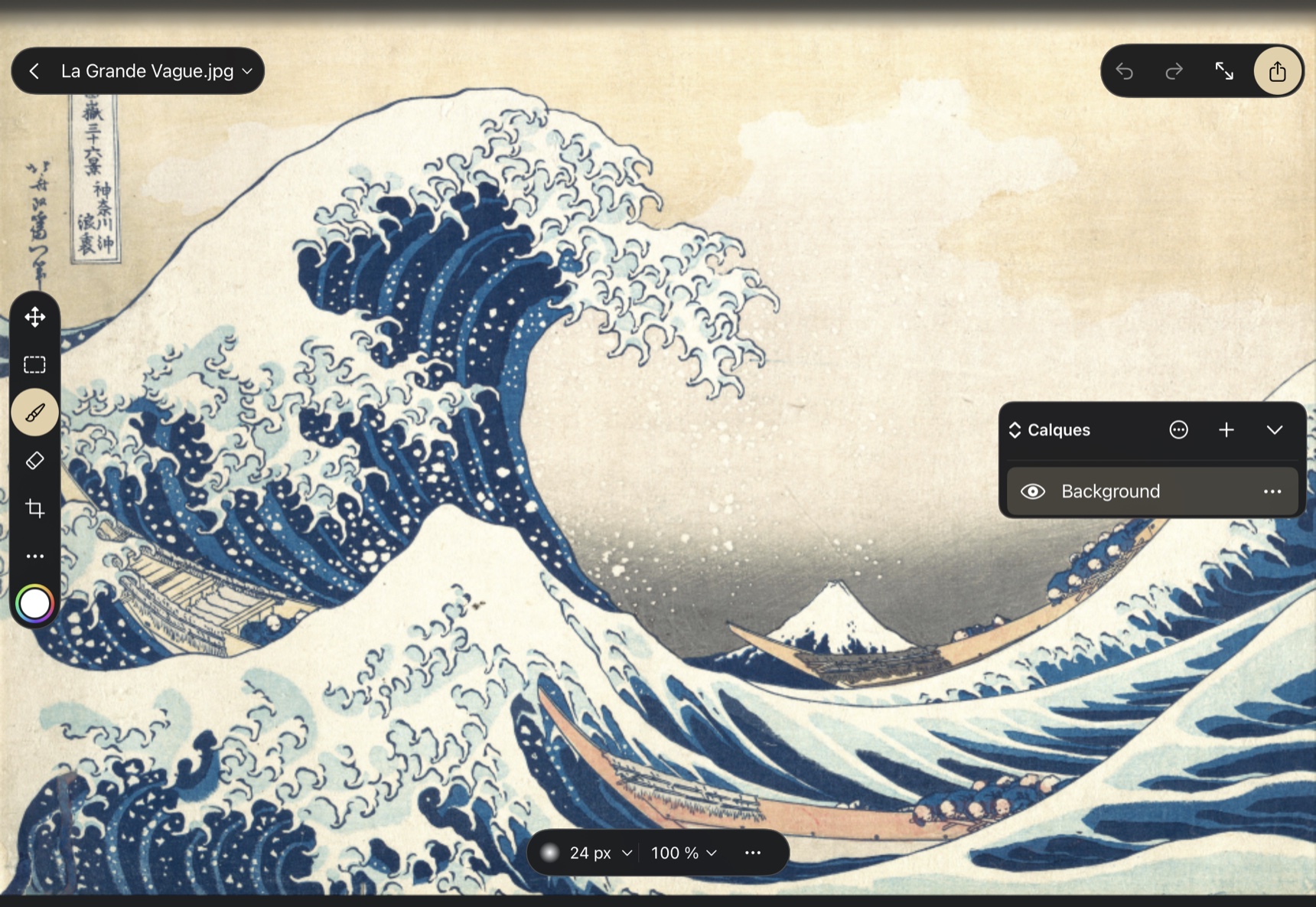
Screenshots from build 11 source, captured on a Mac and in the iPhone and iPad simulators. Mobile devices are shown in landscape, with the Duo open on its inner display. Select an image to enlarge it.
iPhone Duo open · Landscape
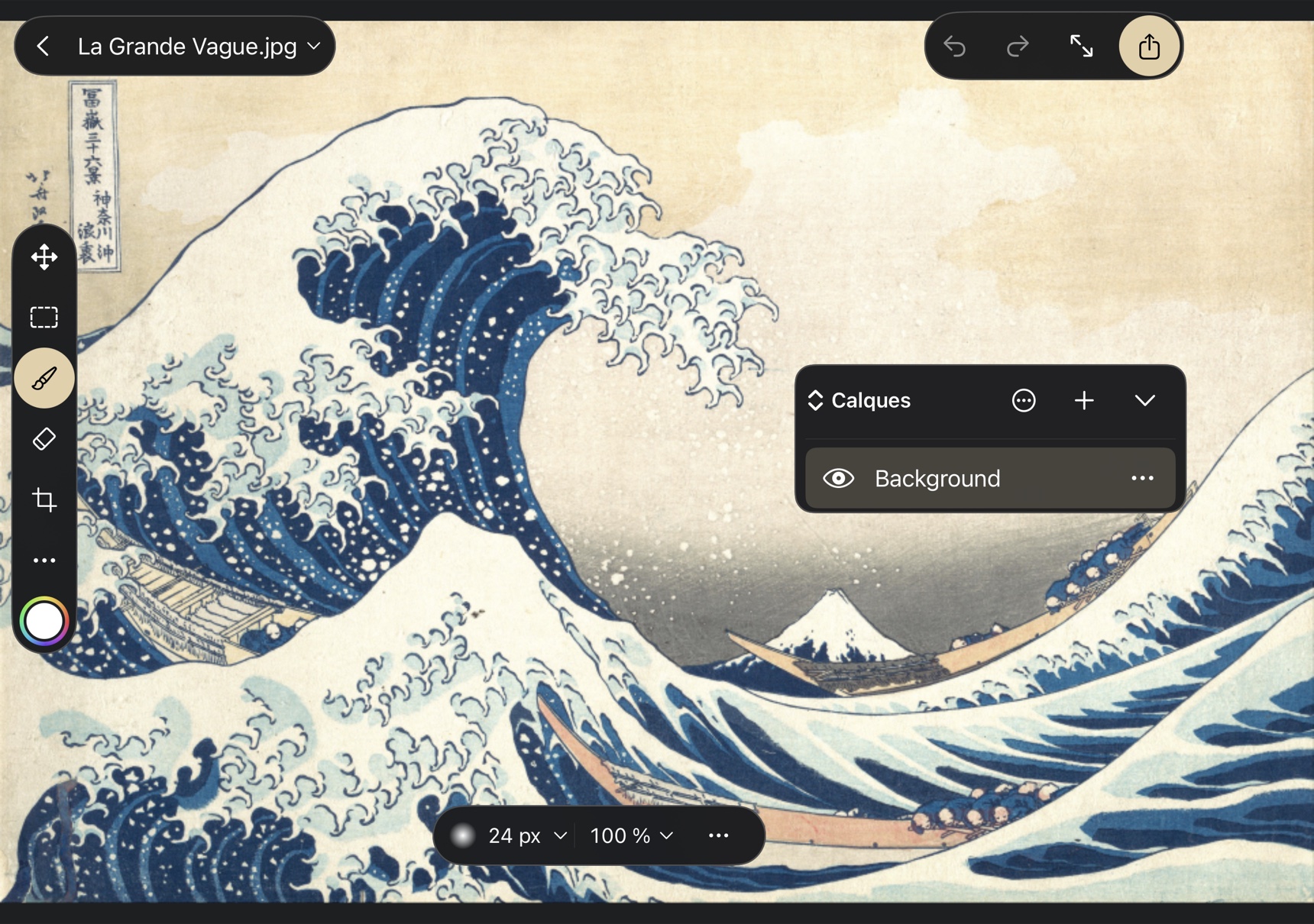
On the open inner display, tools sit on the left, Layers on the right and sharing at the top. Double-tap with Hand to zoom and double-tap again to fit.
iPad · Landscape
The canvas stays behind the controls. Open Layers with the layers icon and use a layer’s menu for its details. Pencil and touch navigation can be configured separately.
Mac · macOS
The tool palette sits on the left, with Colors and Layers on the right. System menus and tabs provide document commands. With Hand selected, double-click to zoom or fit.
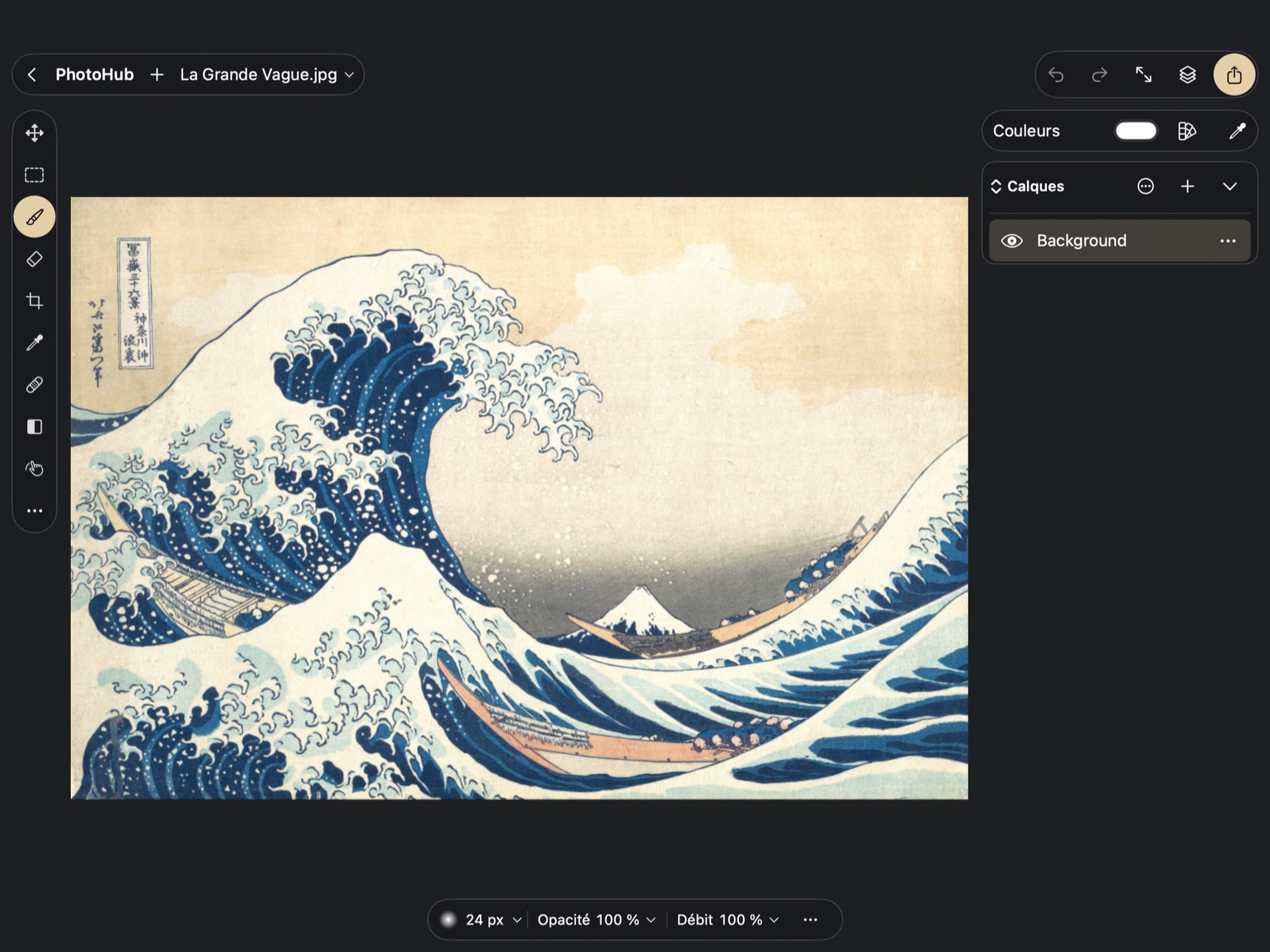
Demo artwork: The Great Wave off Kanagawa by Katsushika Hokusai, public domain.