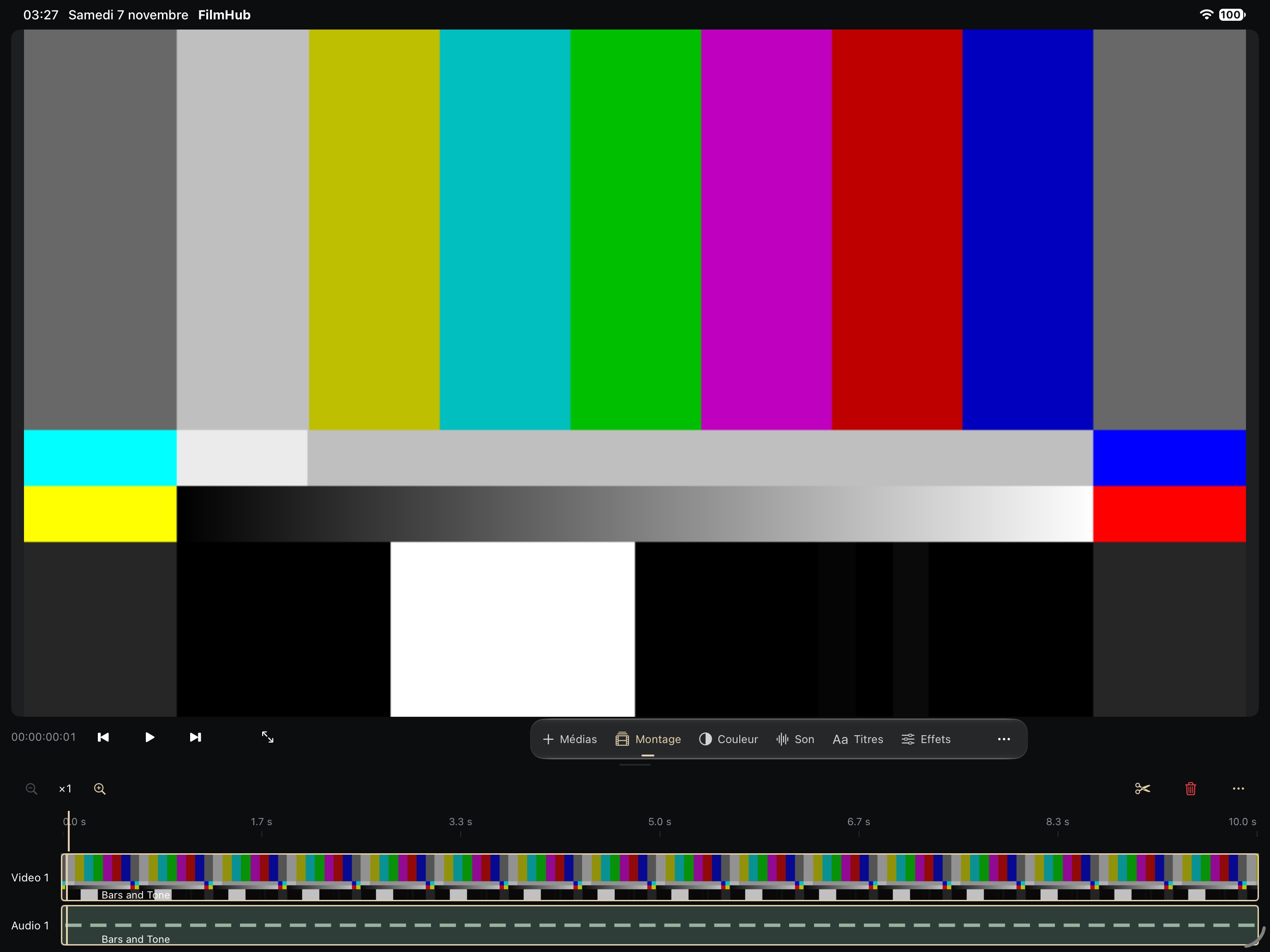
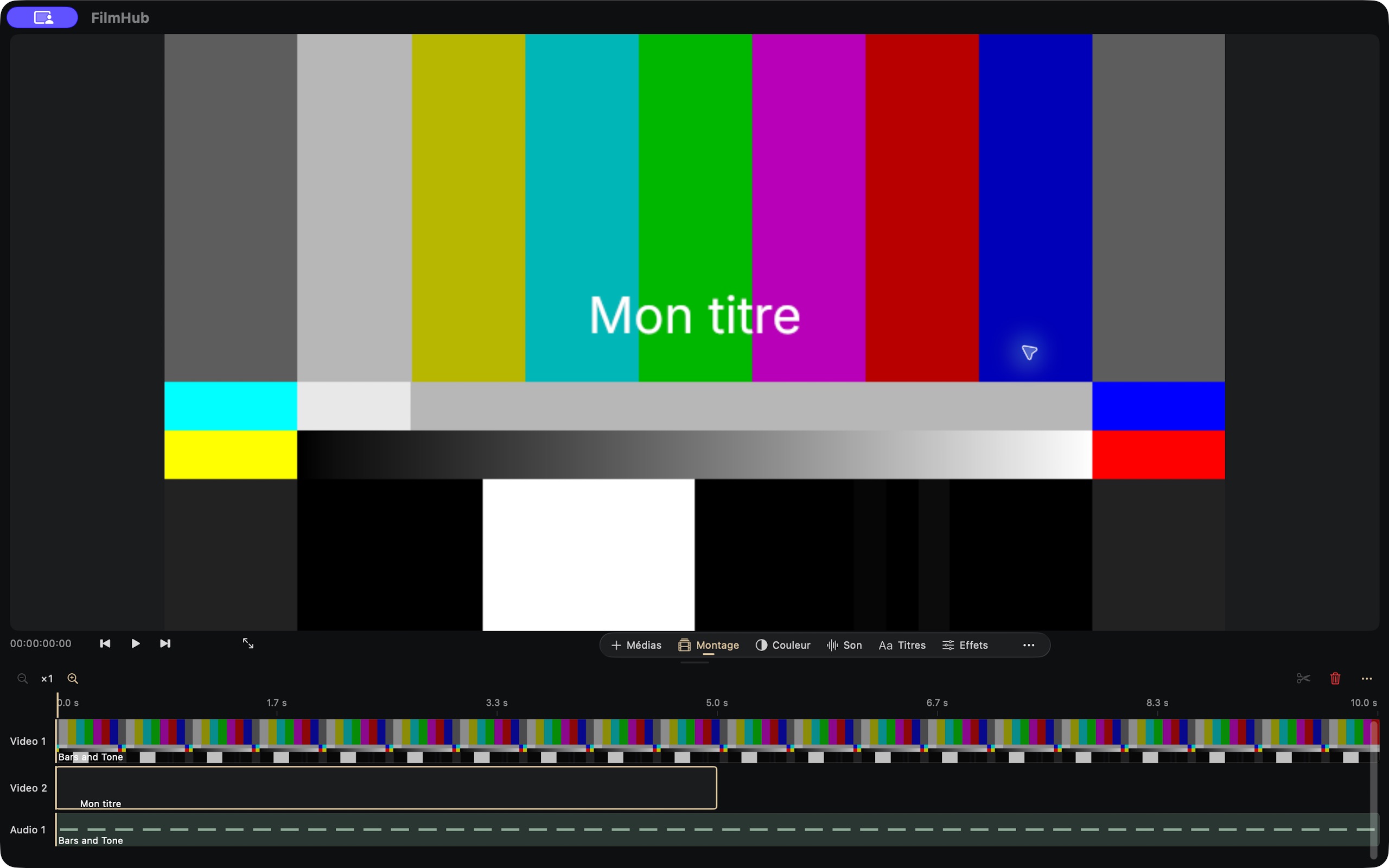
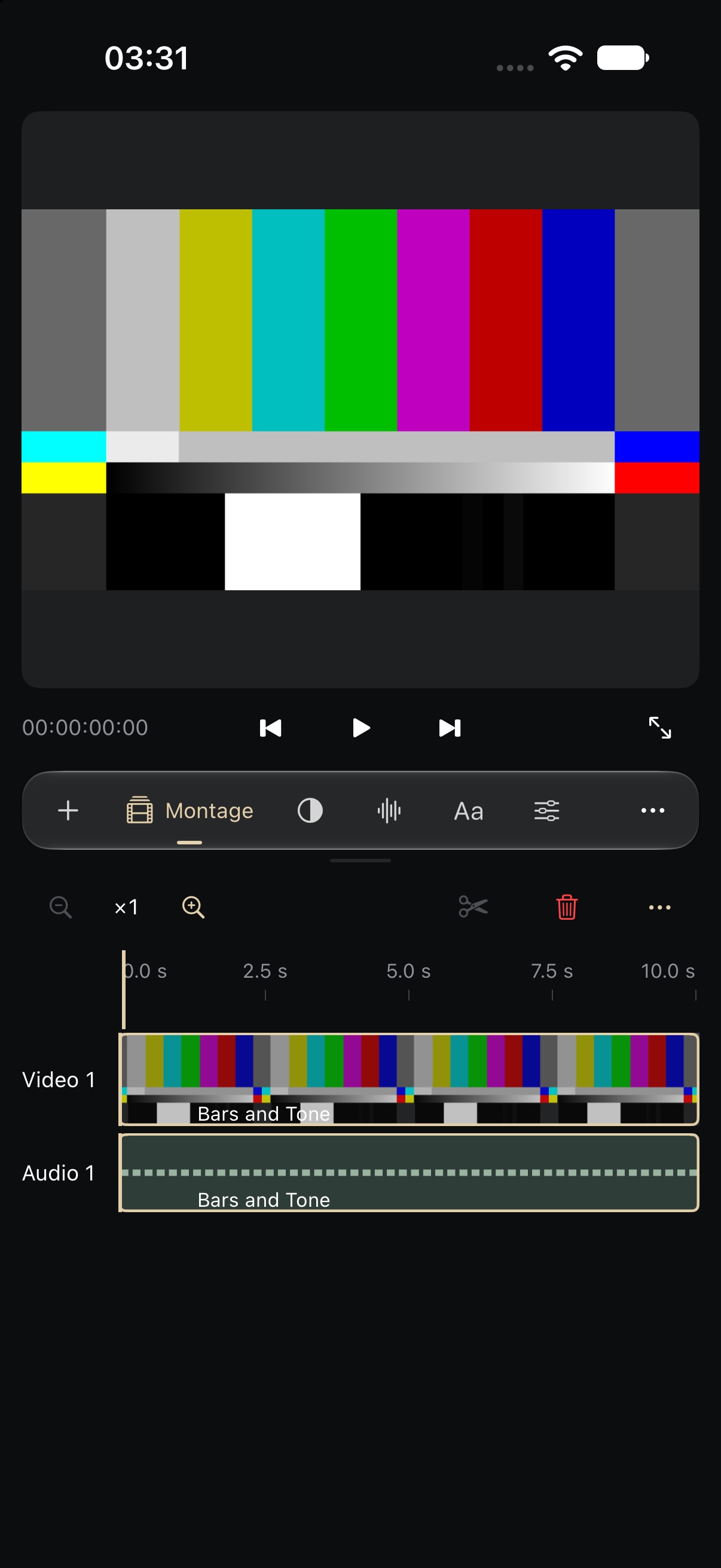
In the library, name and create a project or open an existing one. The demo supplies generated media for practice. Import a .fcproj project to create an independent library copy; external media may need relinking. FilmHub automatically saves edits in its library. If saving fails, a persistent warning offers Retry before leaving. Open Library from the dock’s ellipsis palette. Sequence settings offers a manual copy. Sharing that copy shares the edit document; keep the media too. The library can restore the previous backup after confirmation.
Open Media from the tool bar. Filter by name or type, then open a sequence before editing its timeline. Insert places media at the playhead. Prepare source opens the source monitor. All tools → Create sequence creates a new edit. The dock switches directly between Media, Editing, Colour, Sound, Titles and Effects. Its ellipsis opens a flat searchable list for Source, Export, Precision, Masks and other tools. Media filtering is retained.
Tap or click a clip to select it. Position the playhead at the intended edit point. Hold a clip before dragging to move it; its handles trim the edges. Pinch the timeline to zoom around the touched point. Drag horizontally on its empty background to pan without moving clips. Drag the ruler to seek; releasing commits the position. Double-tap the preview to open the monitor. Swipe down from a tool header to dismiss it, or use Close. Drag the divider to share height; a partially folded Duo uses the hinge. Use cutting controls and clip handles to adjust the edit. Zoom the timeline for finer targeting. Empty tracks are hidden by default; Other actions → Show empty tracks restores them. Thumbnails and sampled audio envelopes use actual source data. All tools → Markers and editing groups selection and deletion, including ripple deletion. Check neighbouring clips after ripple edits.
Monitor opens a dedicated program viewer, with playback and frame-step controls beside the picture. While paused, choose 384, 720, 1440 px or the offered native resolution, up to 4096 px within a 9-million-pixel budget. Pinch to inspect and use Fit to return to the full frame. Export PNG from the monitor image menu to share a real render. A still does not replace saving the project or exporting video.
In Inspector, choose the clip and effect. Add an effect opens a searchable catalogue; available native controls depend on effect type. Enable animation, move the playhead and change values to build keyframes. Expand Keyframes to edit values, move a key by one frame or choose interpolation. Previous/next keys pages through longer animations. Seven interpolation modes include Bézier, auto, continuous and ease-in/out. Adjust Bézier influences or select multiple keys on the current page to move or interpolate together. Group moves protect unselected keys. Removing all keys asks for confirmation; Undo restores the edit.
Colour groups Scopes, Curves and Wheels/LUT. Choose a video clip and add colour correction if absent. Adjust curves or shadow, midtone and highlight wheels. Numeric fields supplement gestures; Reset recentres a wheel. Choose an input LUT or built-in creative look. Import accepts .cube and .3dl up to 8 MB and embeds the table in the project. None clears a slot.